 Panelift
Leave the laptop. Take the windows.
Your Mac stays home. Its windows come with you, on an iPad or iPhone.
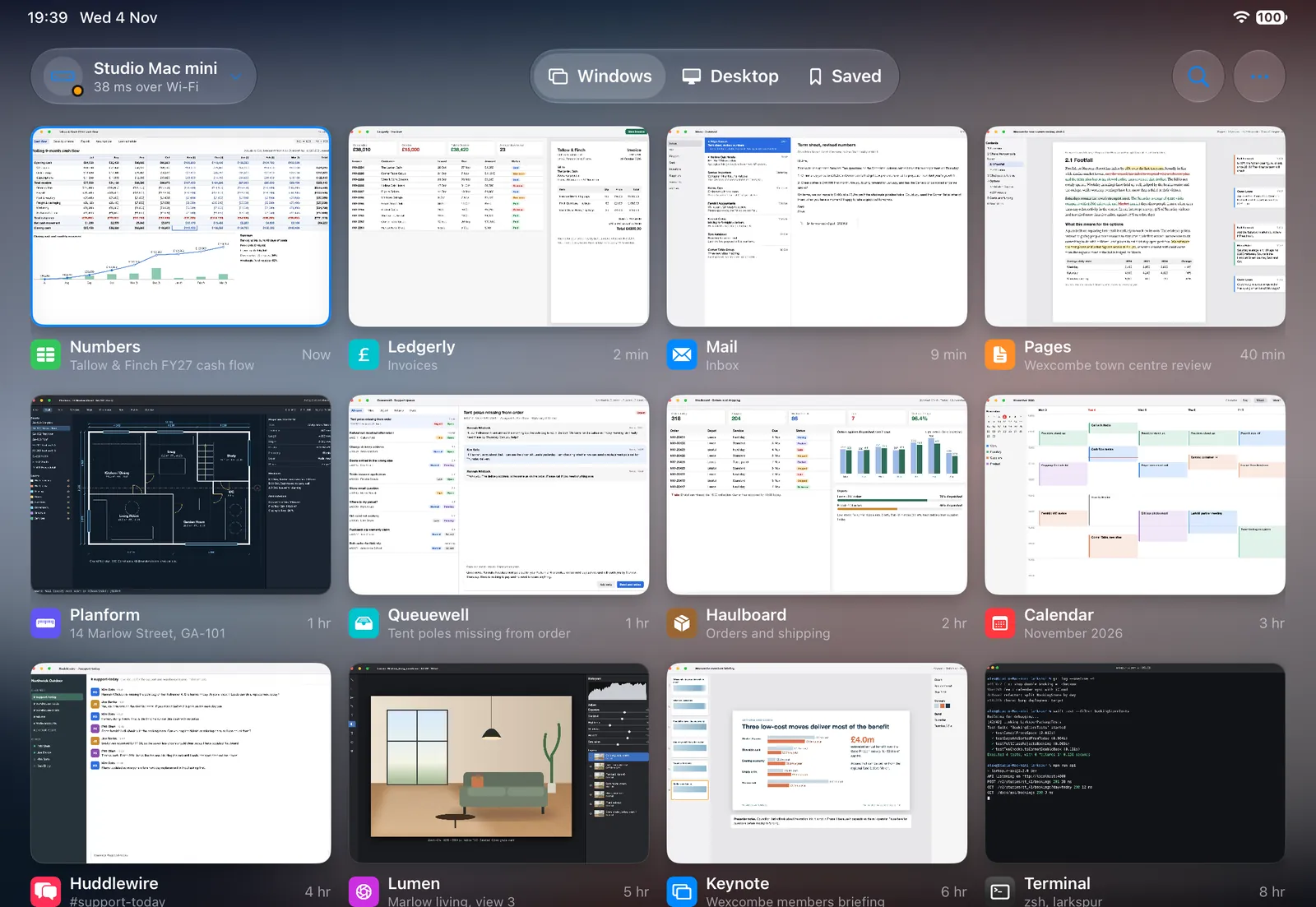
Panelift shows every window and display on your Mac. Tap one and it fills the screen.


Needs a Mac that stays on, awake and unlocked. We'll come back to that.
You don't work on a desktop. You work on three windows.
The rest of your desktop is just there, taking up pixels. Remote desktop apps send you all of it anyway, and on an 8-inch screen that means tiny text and a lot of pinching. Panelift starts from the window you need. It gets the whole screen and the rest stay one tap away.
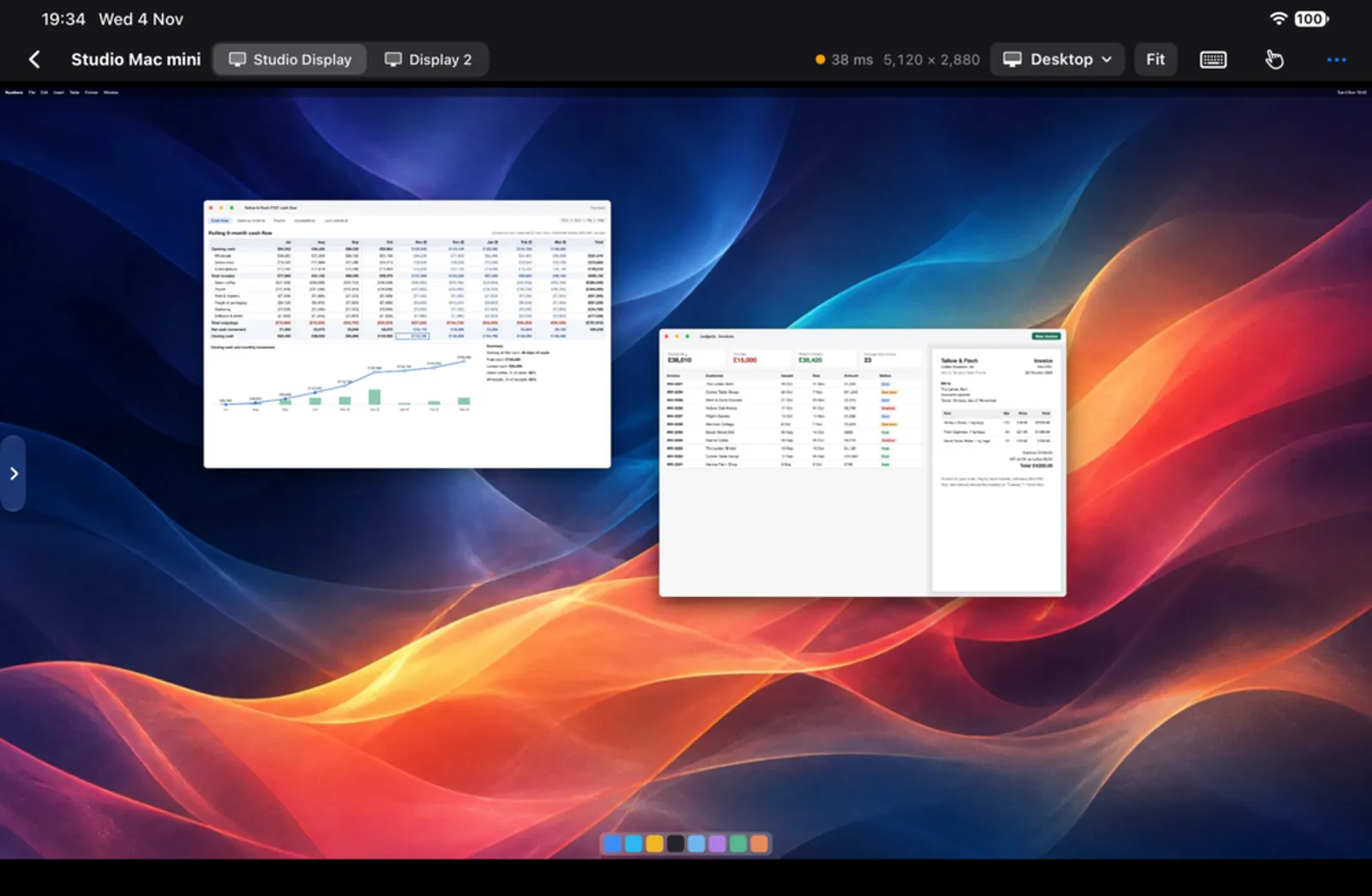
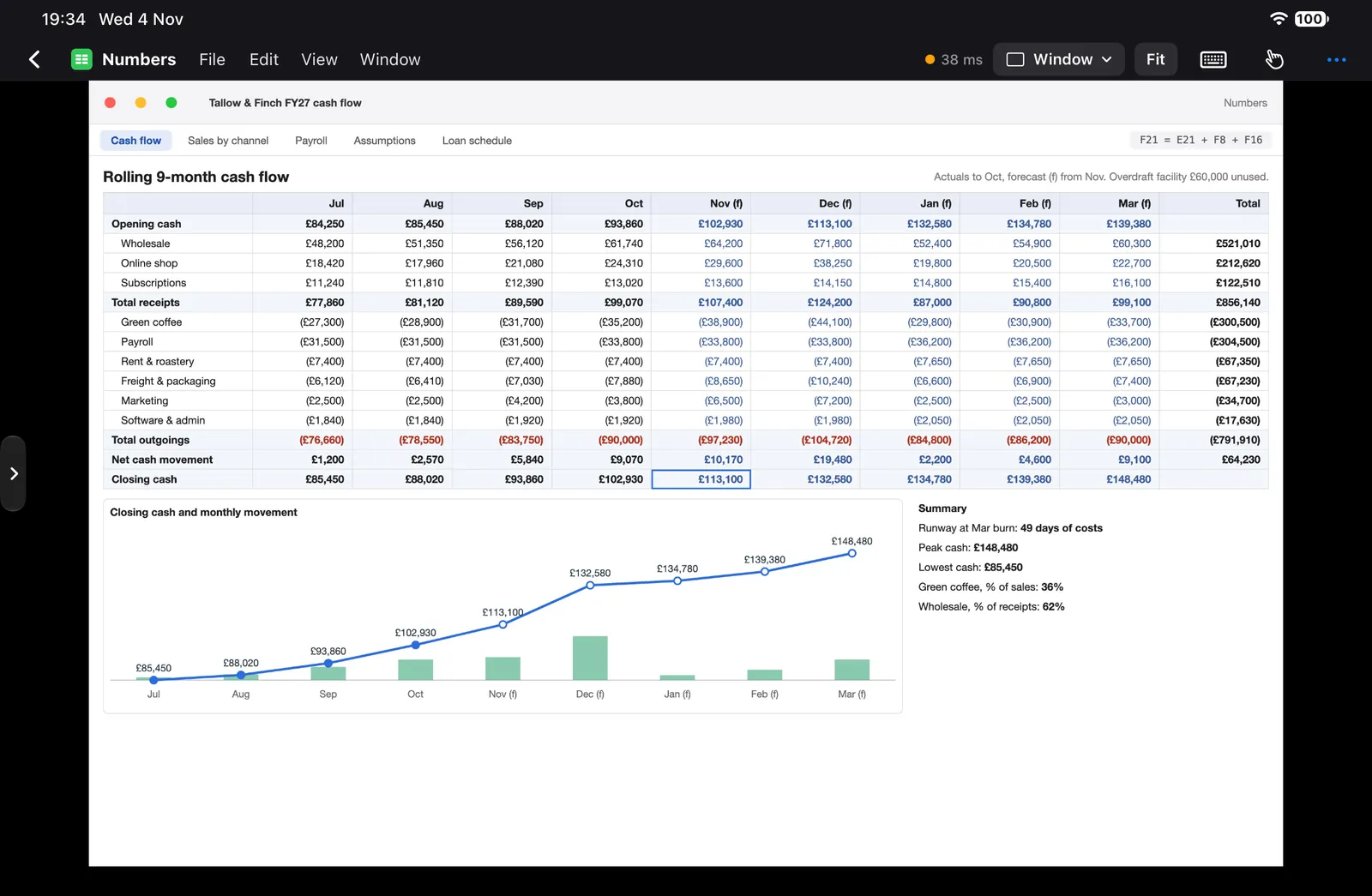
A 2560 × 1440 desktop on an iPad mini in landscape draws a 1200 × 800 window at about 41% of its size. Open that window on its own and it's about 87%. That's arithmetic, not a benchmark.
A minimal remote desktop for your Mac
Panelift is for remote workers and digital nomads who need their whole setup on the road and are tired of carrying a laptop. Your apps, logins and files stay on the Mac. What travels is a screen and something to type on.
It runs on iPad and iPhone, with its own layouts for the small one: see the iPad mini remote desktop page. It needs a Mac that stays on and a connection, and the rest of this page says where that falls short.
Two windows when it's that sort of job. Four when it's that sort of day.
One window, the whole screen. The everyday mode.
Two windows together. Drag the divider to ⅓, ½, ⅗ or ⅔. Swap them or replace either one. Hold an iPad upright and they stack.
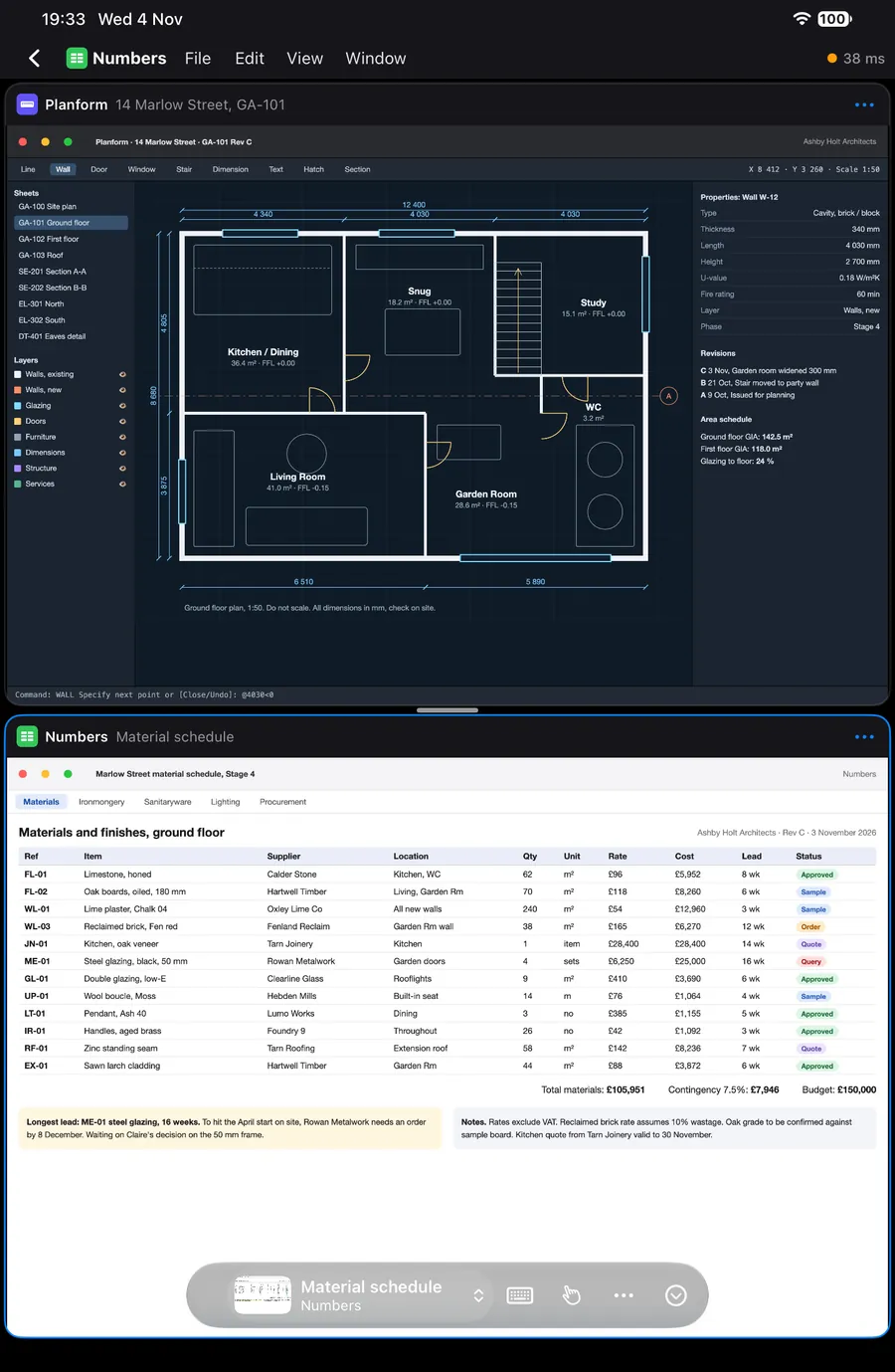
Up to four windows you can move and resize. Or arrange them as Overlap, Side by side or Grid. On iPad, and on iPad mini in landscape.
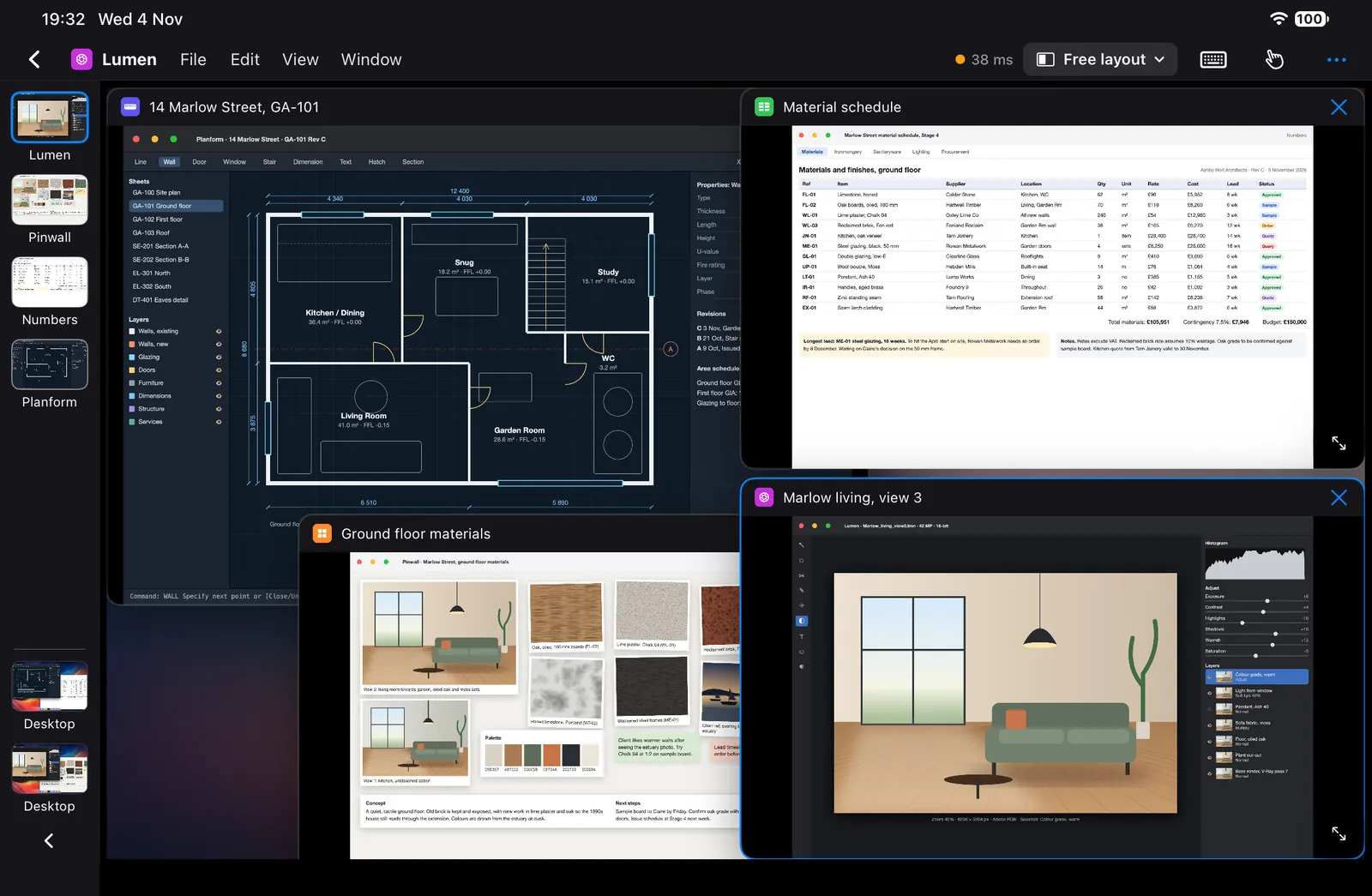
One window takes your input at a time. Tap another and it comes to the front on the Mac, the same as clicking it there.
Every window and display on your Mac. Tap the one you need.
Every open window has a live thumbnail, its app and its title, most recent first. Every display has its own card. Hold one, on iPad, to open it in Split or Free layout instead.


The Windows tab and the Desktop tab, with twelve example windows from different kinds of work. macOS only lists windows that are on screen, so something minimised or on another Space won't show. Desktop still gets you there.
Your three windows aren't anyone else's
Whatever you do, it's already set up on your Mac. Same apps, same logins, same files. These are examples with invented names, and they're the sort of job Panelift suits: reading, typing and deciding, in a few windows.
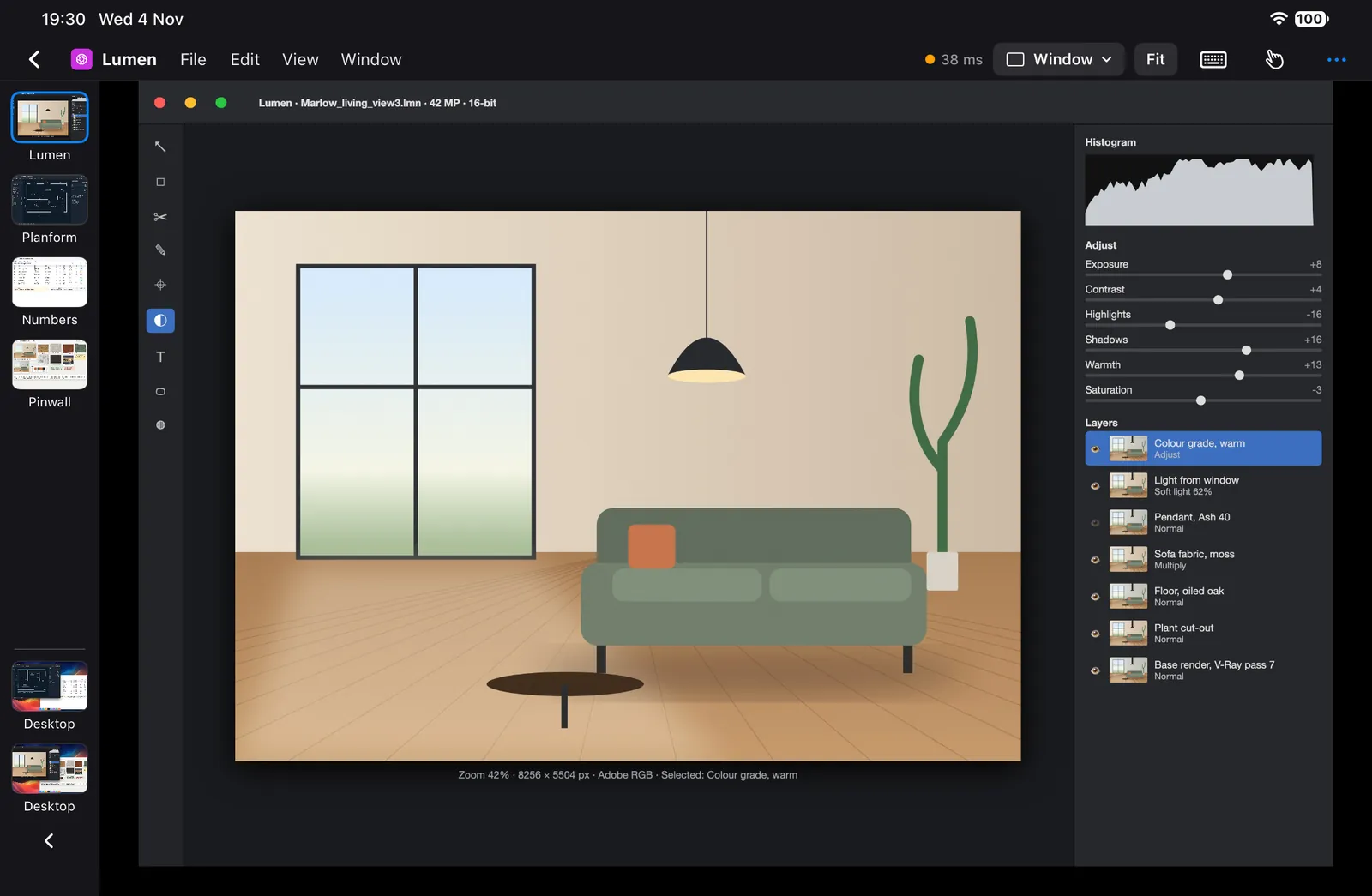
Month end, from a train
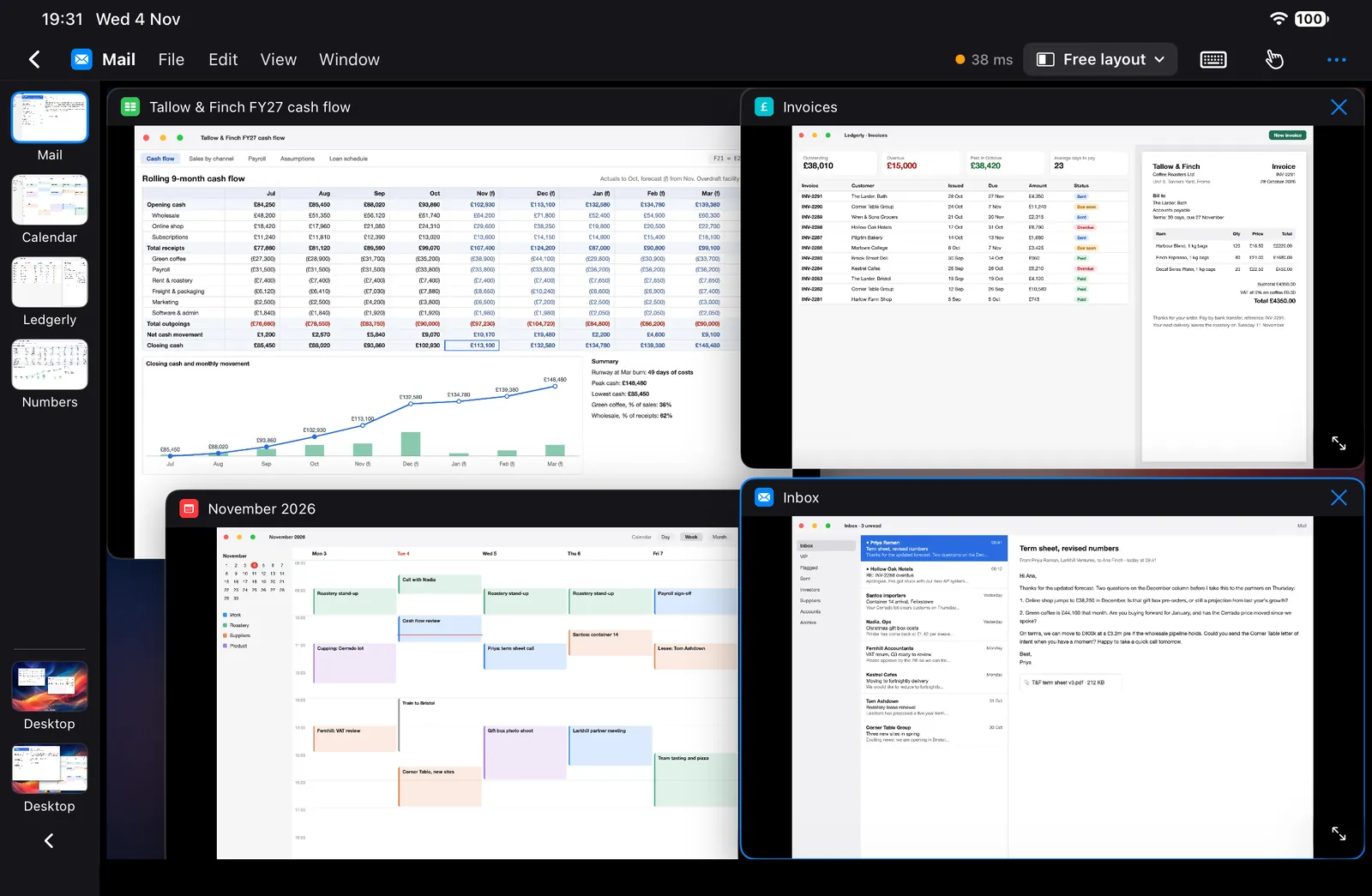
The cash flow forecast, the invoices, the calendar and the inbox, all open at once. Your accounting app stays logged in on your Mac, so the numbers are the ones you left.
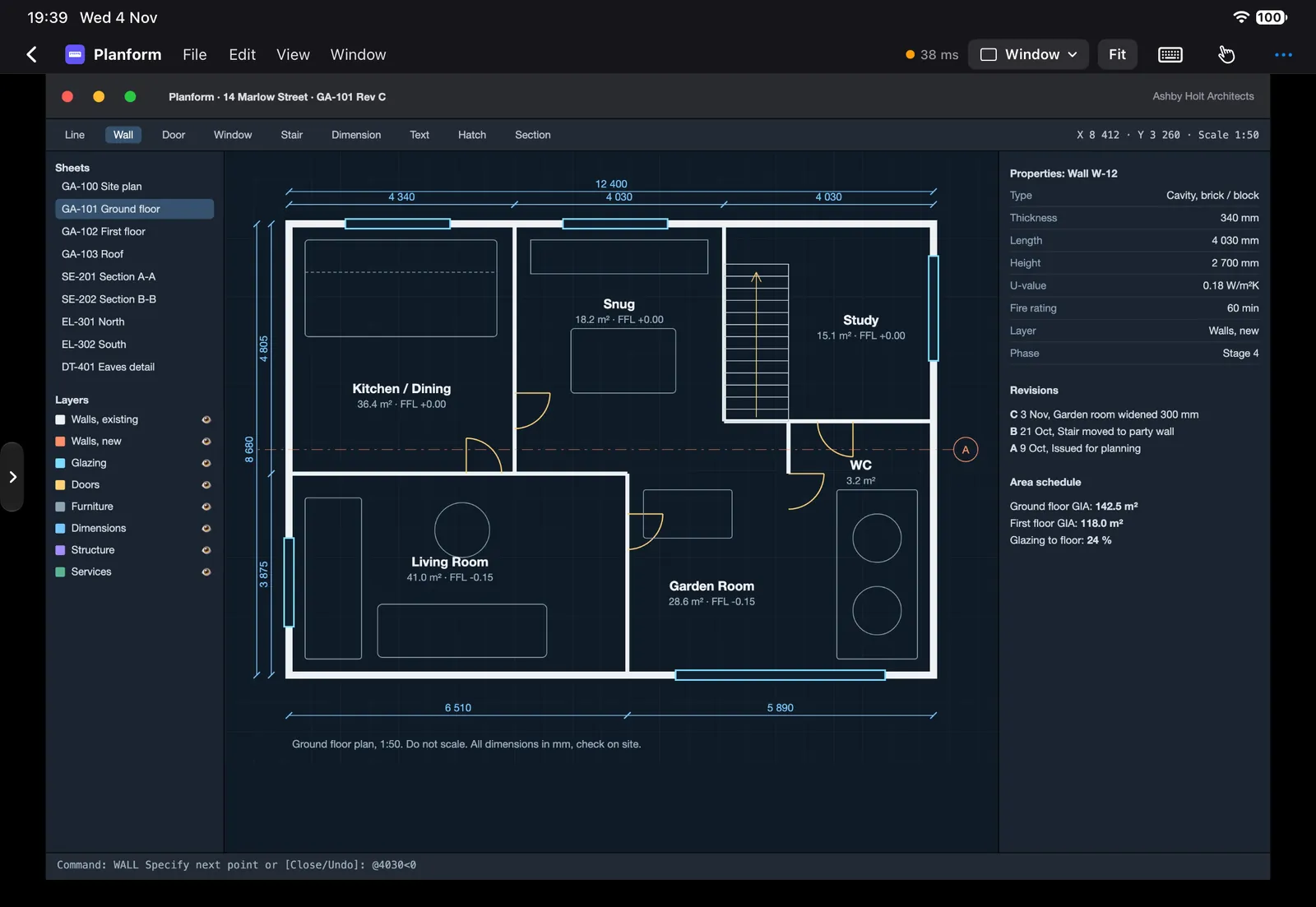
The plan and the schedule, on site
The drawing, the materials schedule, the moodboard and the render, on an iPad mini. Good for checking, marking up in the app and answering questions. Apple Pencil taps and drags, with no pressure or tilt, so this isn't a drawing tablet.
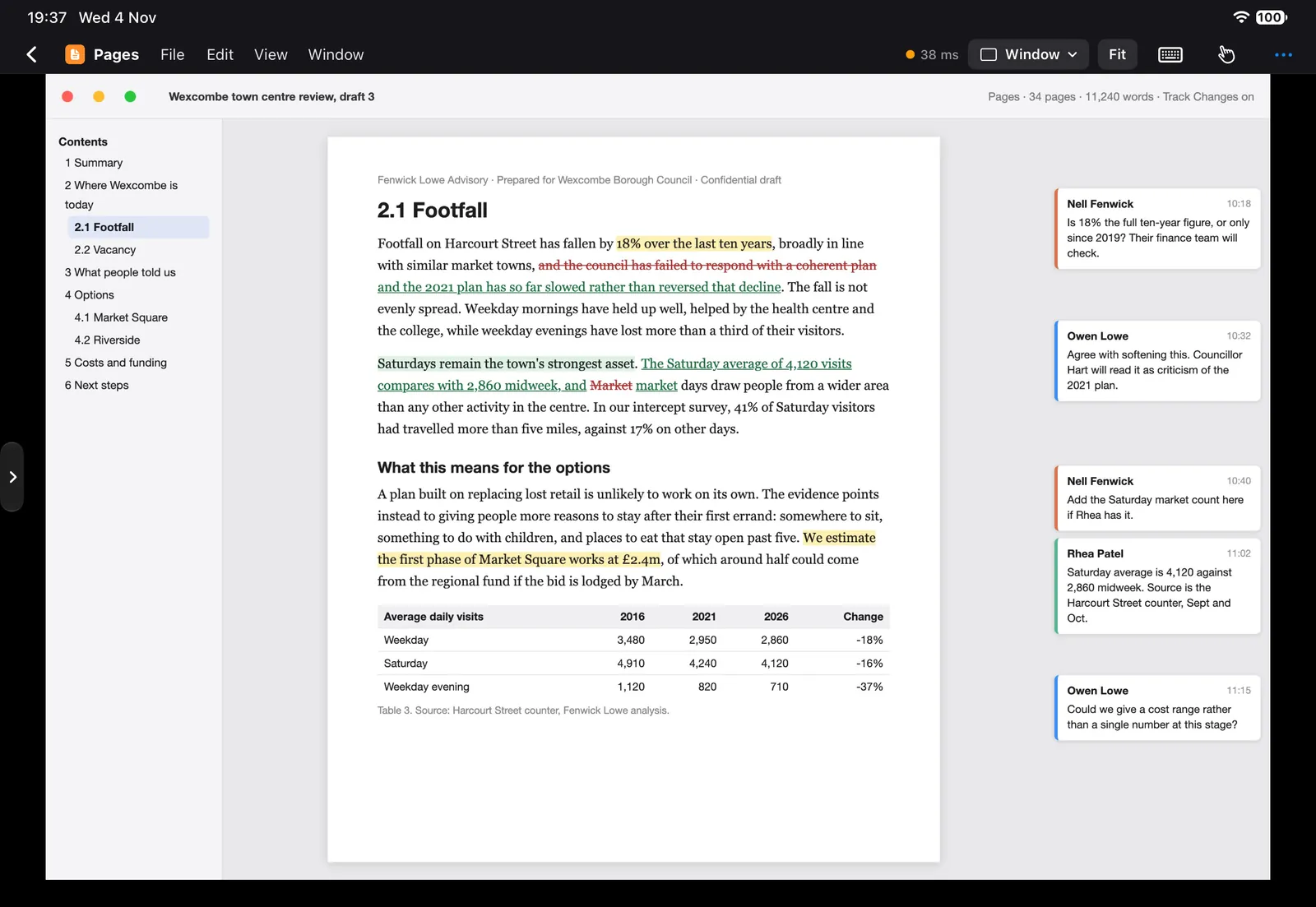
Tracked changes you can read
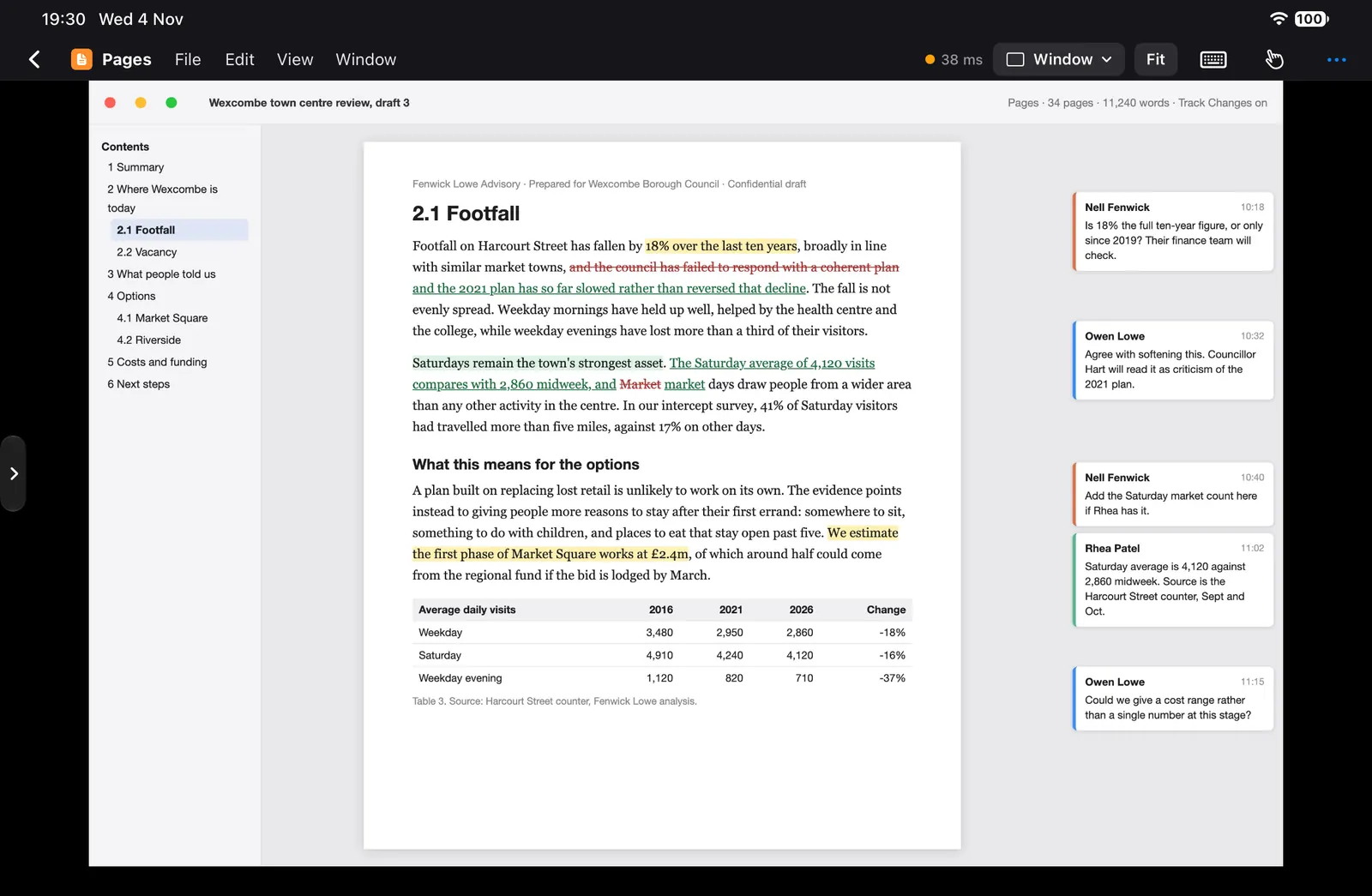
Thirty-odd pages, comments down the side, at a size you can actually read. The deck and the research are one tap away in the rail.
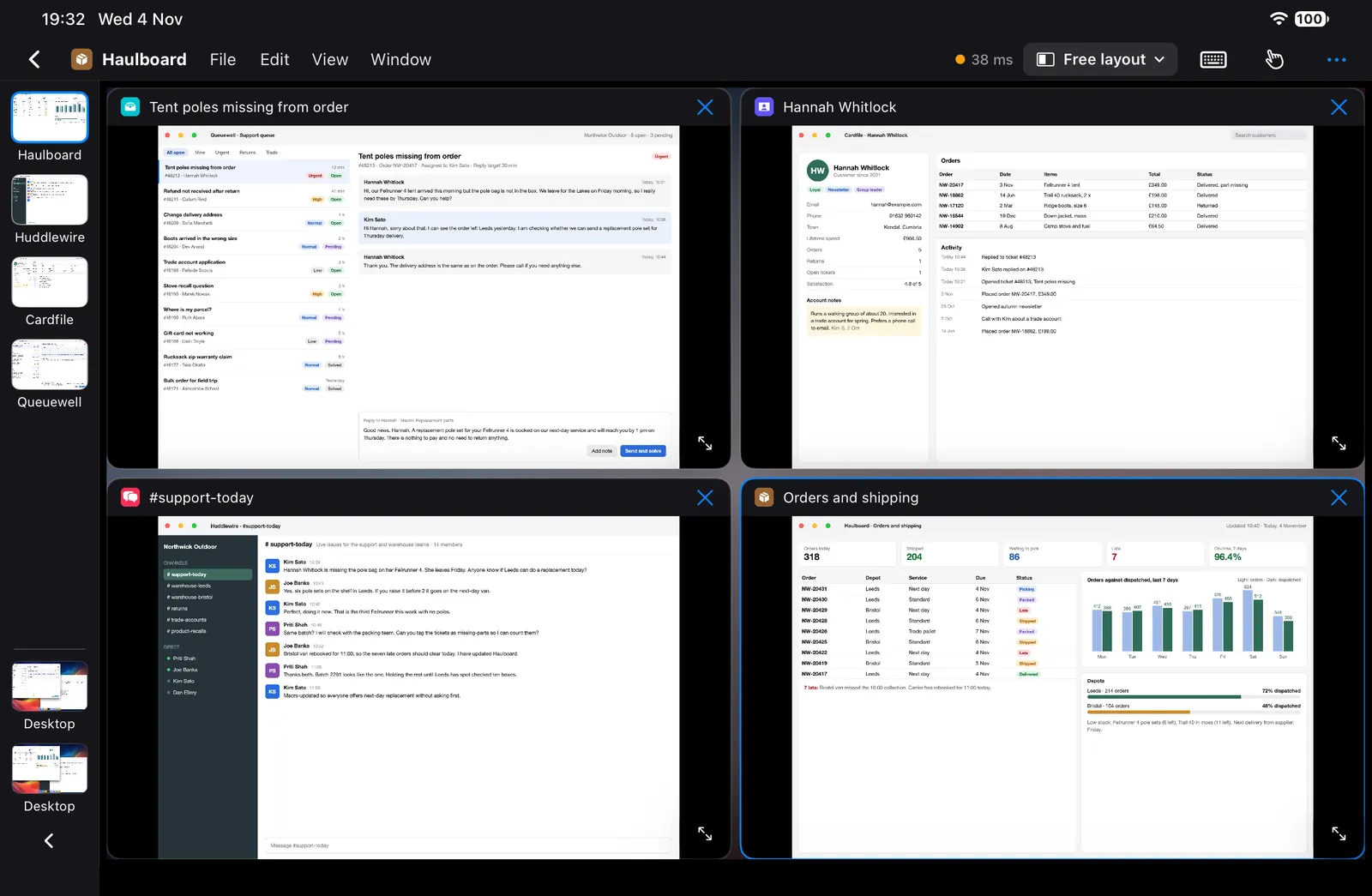
A whole support desk on one iPad
The ticket, the customer, the order and the team chat, side by side. Whichever tools your company signed you in to, they're still signed in on your Mac.
The editor and the build, without the fans
Your Mac does the compiling. Xcode, Safari and Terminal get their own shortcut keys on the row, so Build is ⌘B and it's sitting right there.
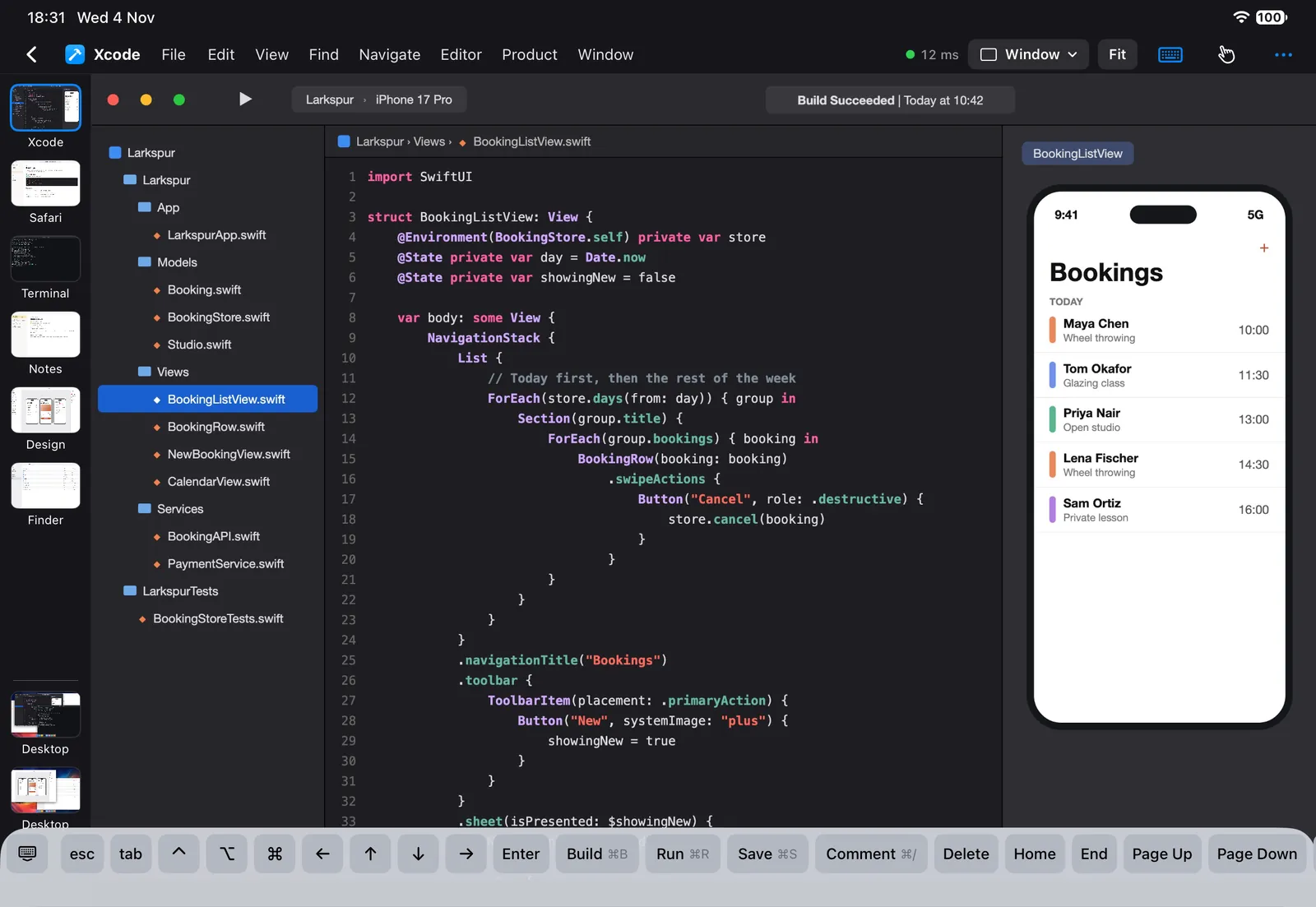
Right-click, hover, shortcuts: the parts touch usually loses
Esc, Tab, ⌘ and F-keys in a row you can reorder, the Mac app's real menus along the top, and a small map of where you are when you zoom in.
What stays. What comes.

Stays at home
- The Mac
- Its charger
- Its fans
- Your spreadsheets, your drawings, your licensed apps, your logged-in everything

Comes with you
- An iPad mini, an iPad or an iPhone
- A foldable keyboard
- A case with a built-in stand
No VPN. No port forwarding. No account.
Pair once, by QR code or a 6-digit code, and approve the device on your Mac. After that they find each other, on the same Wi-Fi or over the internet.
Your screen goes directly from your Mac to your device, encrypted. It doesn't pass through a server of ours, because there's no such server. A small connection service introduces the two devices and that's all it does.
The catch comes with the same design. If a network blocks direct connections, Panelift can't connect on it, and there's no relay to fall back on. It tells you. Try your usual networks before you leave the laptop behind.
Where a laptop still wins
We'd rather you found this out here than on a platform with no signal.
- No signal, no work.A laptop still has your files. Panelift has a screen saying "Reconnecting…". Some networks block it too.
- Your Mac has to be running.On, awake, logged in, unlocked and online. Panelift can't wake it, and after a power cut or restart someone has to log in.
- Unlocked means unlocked.Locking the Mac ends the session, so it sits at home logged in, showing whatever you're doing. Put it somewhere you trust.
- No video editing, audio work or games.That isn't what this is for. There's no sound, and frame rates are ceilings your connection decides. Panelift is for reading, typing and deciding.
- No file transfer.Plain-text clipboard, up to 100 KB, and nothing else moves between devices.
Those are the catches. If none of them stops you, try it.

Pair it once. Then see how light the bag gets.
There are two halves: a Mac app for the computer you're leaving behind, and an app for your iPhone or iPad. The Mac app is free, each device you control from is a one-off payment, and it's all free during the beta.